
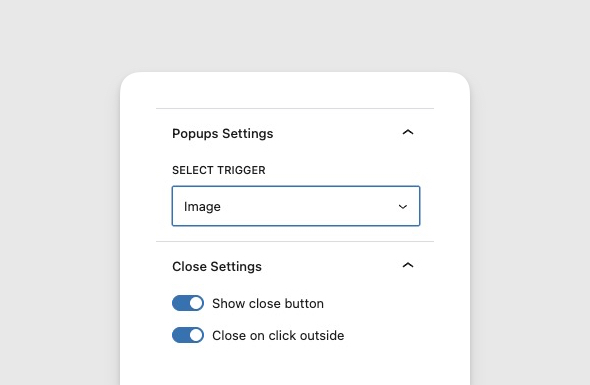
The Image trigger is a Simply Popups Pro feature that allows you to use any HTML element, including images, as a popup trigger. This is perfect for:
- Thumbnails: Click a small image to show a larger version or details in a popup.
- Banners: Click a promotional banner to open a signup form.
- Icons: Use custom icons (like a “Help” question mark) to open informational popups.
Using Shortcodes
To use an image as a trigger with the shortcode, you need to use the button_html attribute. Instead of providing a text label, you will provide the full HTML <img> tag.
Basic Image Trigger
[simply-popups button_html='<img src="https://example.com/my-image.jpg" alt="Click to open" />']
    <h2>Popup Content</h2>
    <p>This popup was opened by clicking an image!</p>
[/simply-popups]
Styling the Image
You can add classes or inline styles to your image tag within the button_html attribute to control its size, cursor, or hover effects.
[simply-popups button_html='<img src="https://example.com/banner.jpg" class="popup-trigger-img" style="cursor:pointer; max-width:100%;" />']
    [formidable id=5]
[/simply-popups]
When using button_html, ensure you use single quotes to wrap the attribute value so you can use double quotes for your HTML attributes (like src and class).
Accessibility
When using an image as a trigger, it’s important to maintain accessibility:
- Alt Text: Always include a descriptive
altattribute in your<img>tag. - Keyboard Navigation: Simply Popups automatically wraps your image in a link or button element (if not already) to ensure it can be focused and activated via keyboard.
Using with the Block Editor
If you are using the Block Editor (Gutenberg):
- Add a Shortcode block to your page.
- Paste the
[simply-popups]shortcode with thebutton_htmlattribute as shown above.
This gives you the full flexibility of HTML triggers while still working within the Block Editor content flow.