Simply Popups works seamlessly with Formidable Forms, allowing you to display contact forms, surveys, and lead generation forms inside a modal window. This combination is perfect for increasing conversion rates without directing users away from your content.
Adding a Form to a Popup
Since Simply Popups uses the standard Block Editor, adding a form is straightforward.
- Create your form in Formidable Forms.
- Go to the page where you want the popup.
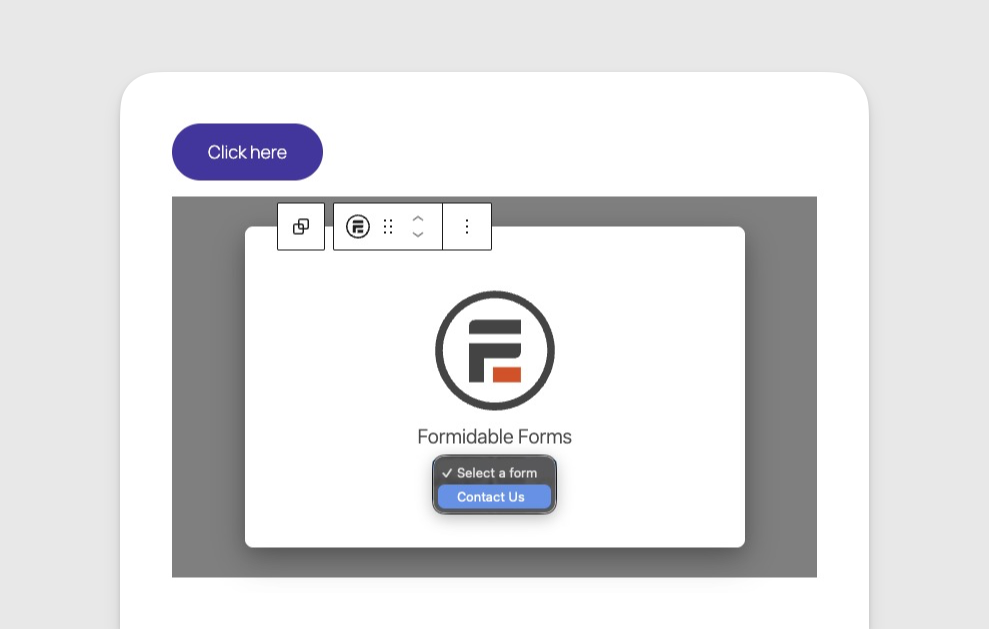
- Add or edit a Simply Popups block.
- Click the (+) icon inside the popup content area.
- Search for and select the Formidable Forms block.
- Choose your form from the dropdown menu.
Important: Enable AJAX Submission
For the best user experience inside a popup, you should enable AJAX submission for your form.
- Go to Formidable → Forms and edit your form.
- Click on Settings → General.
- Check the box for Submit this form with AJAX.
- Click Update.
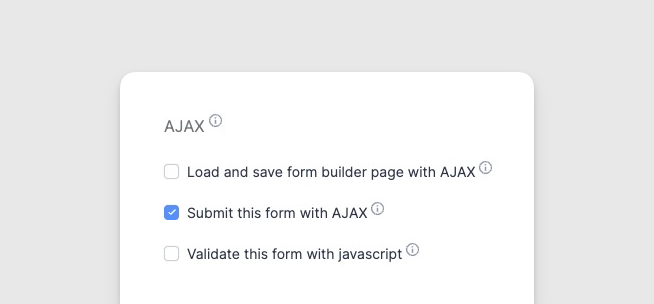
Why? Without AJAX, submitting the form will reload the entire page, causing the popup to close abruptly. With AJAX, the form submits instantly, and the Success Message appears inside the open popup.
Success Messages in Popups
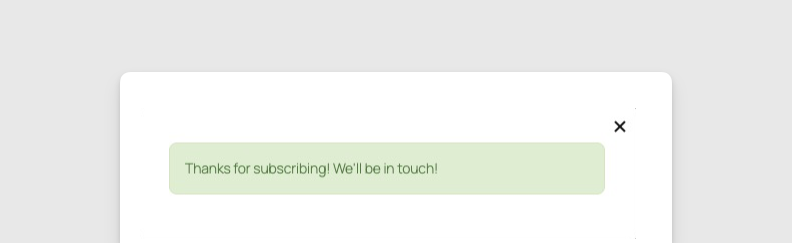
When using AJAX, you can display a confirmation message inside the popup after submission.
- In your Formidable Form settings, go to On Submit.
- Select Show Message.
- Customize your message (e.g., “Thanks for subscribing! We’ll be in touch.”).
Alternatively, you can choose Redirect to URL if you want to send users to a “Thank You” page after they convert.
Migrating from Formidable Modal
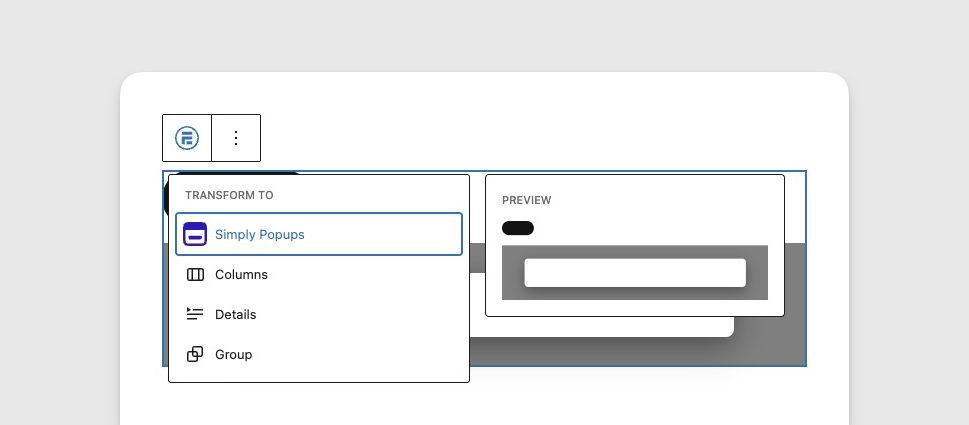
If you are switching from Formidable Modal to Simply Popups, you can convert your existing blocks.
- Select your existing Formidable Modal block in the editor.
- Click the Transform icon (standard block switcher) in the toolbar.
- Select Simply Popups.
- Your content will be preserved in the new block format. You may need to re-configure some trigger settings after transforming.